Tutorial

1
Mobile and Web

Mea1s is a toolbox for planing your weekly meals. Mobile & web apps available, each with trade-offs.

  • Mobile: On phone/tablet. Always on, even offline. Setup needed (once).
  • Web: In browser (Safari, Chrome). No setup. Use a computer (big screen, keyboard). Or tablet. Or phone. Requires internet connection.

Ideally, use both! Sync via cloud (coming soon!).

2
Main pages

Mea1s, a focused tool, has just a few main pages for distinct tasks. Currently, there are two main pages, with more planned. A bottom bar with labels and icons navigates between main pages. Each main page also features a top toolbar showing its name.

wallpaper
3
Week Plan

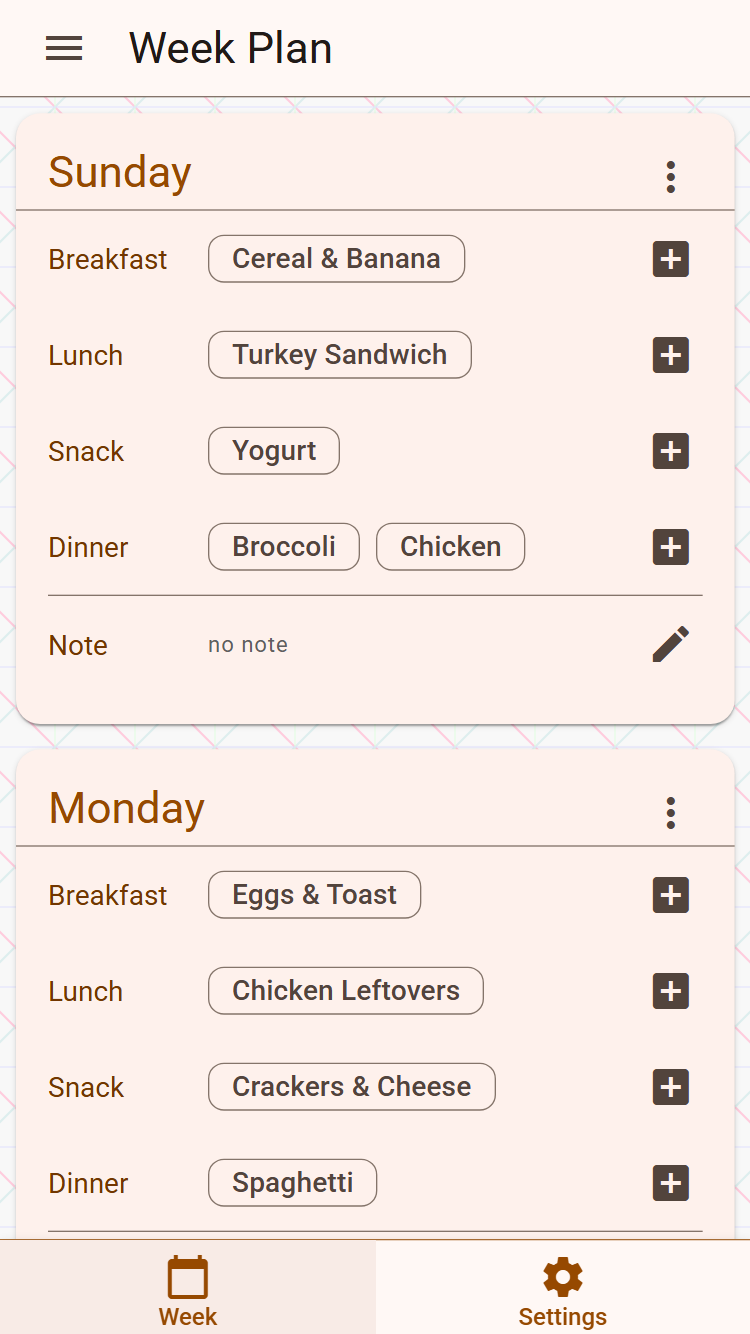
Week Plan is the most used main page. Weekdays shown as a scrollable list of cards. Each card displays the day (Sunday), meals (Breakfast) with dishes (Turkey Sandwich), and a day note at the bottom. The page is initially empty. To add a dish: go to the day, click the plus ( + ) at the meal. A dish editor opens. Clicking a dish name opens its details. A pencil icon edits the day’s note.

wallpaper
4
Cleanup

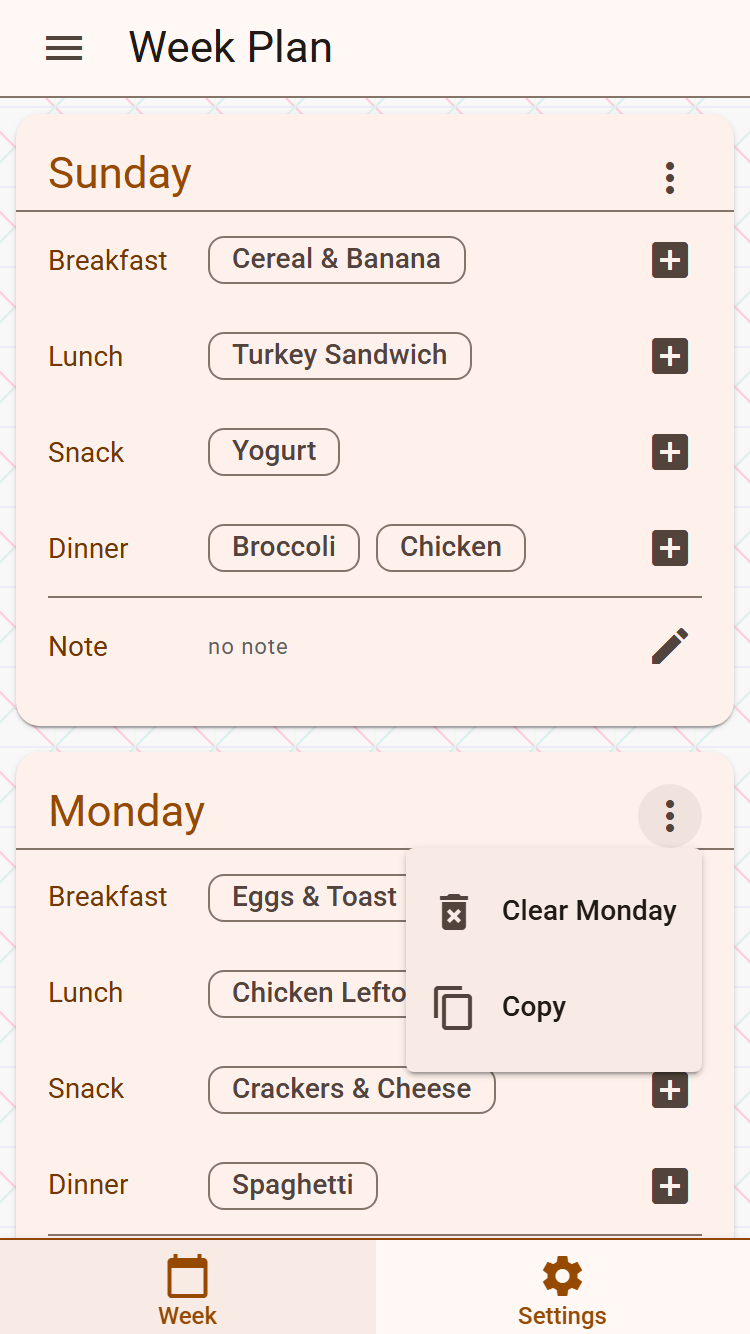
Week Plan page is also where you clean things up. Top toolbar has a hamburger icon ( ), opens week actins menu. Clear all dishes option. Week day title bar has the vertical dots ( ) icon on the right, opening day actions menu. One option is clear the day dishes.

wallpaper
5
Dish View

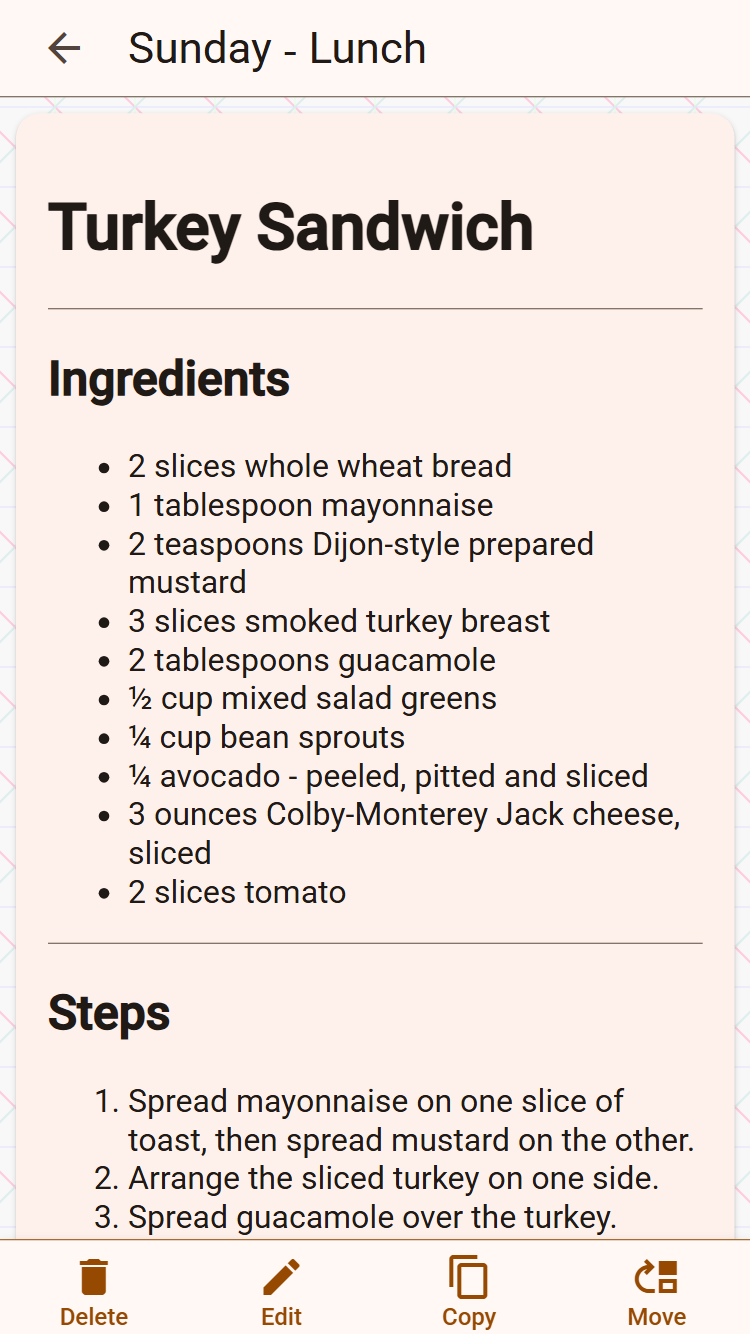
Dish View, not a main page,the bottom bar has dish editing options.

  • Delete - delete this dish
  • Edit - navigate to the dish edit view
  • Copy - a day/meal to copy the dish to
  • Move - a day/meal to move the dish to

The toolbar has the Back icon, navigating back to the Week Plan.

wallpaper
6
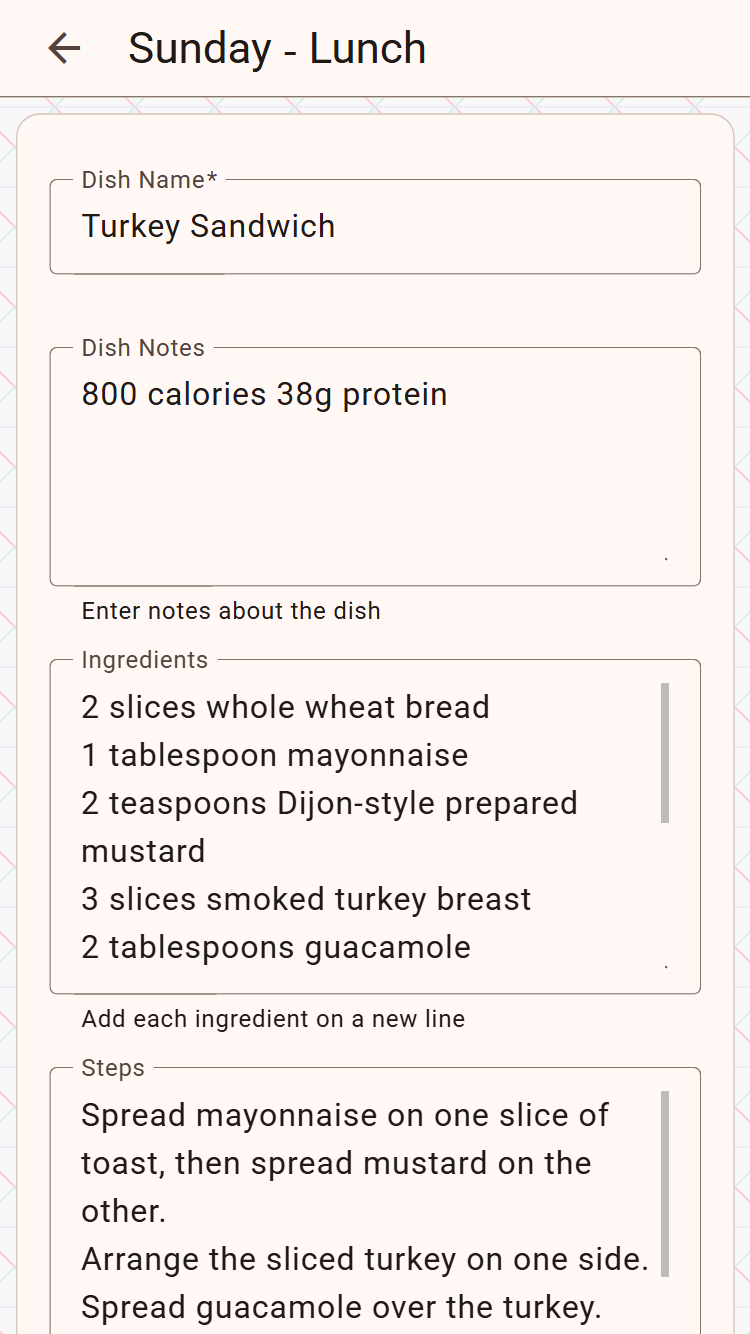
Dish Edit

You get to the Dish Edit page when you

  • Add a new dish in the Week Plan. Dish Edit shows up empty. Enter the name, and, optionally, ingredients, steps and note.
  • Click Edit in the Dish View. Modify what you have previously edited and saved.

Once done, click on Save button to preserve your changes or Cancel button or Back button to go back loosing your changes.

wallpaper
7
Reschedule

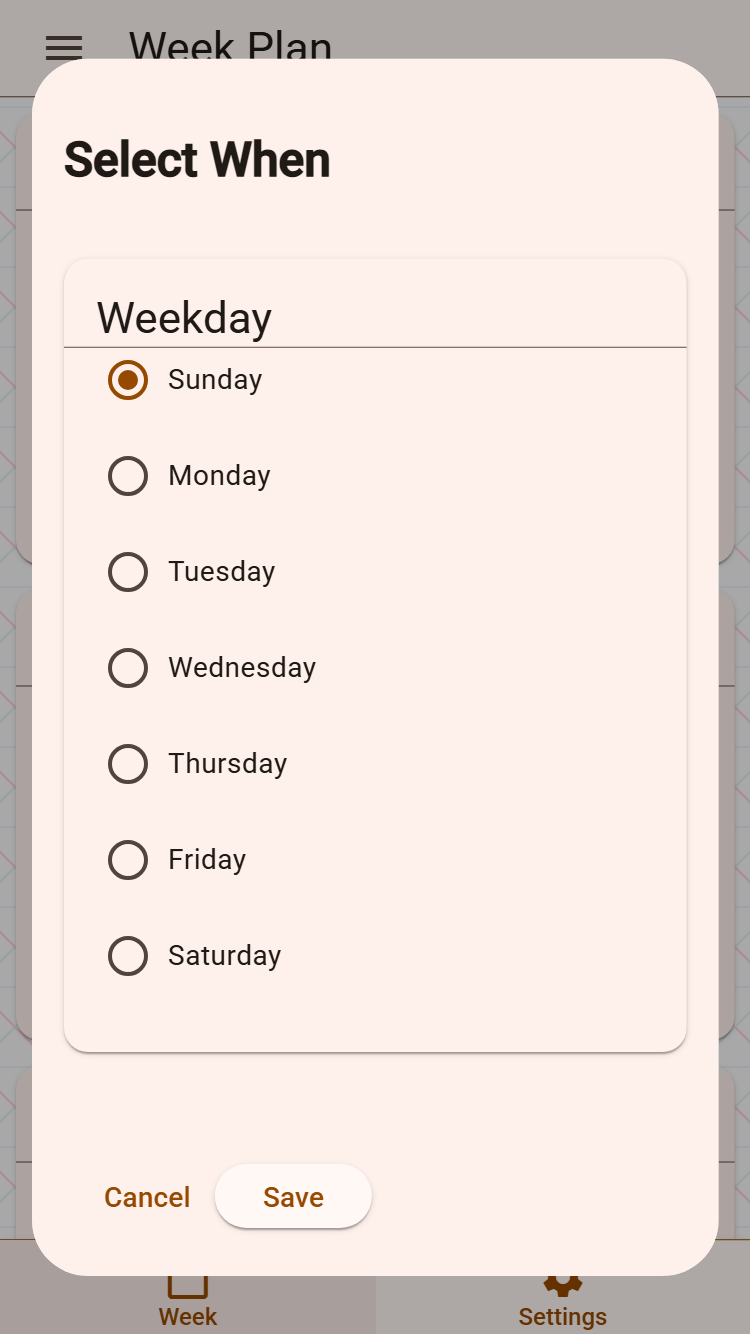
To Reschedule your dish click Move when in Dish View. A dialog asks you choose a Day and a Meal to reschedule to. Click Save or Cancel to leave without saving

wallpaper
8
Reuse your content
  • Have same dish again? Copy an existing dish. In Dish View click copy button. The same dialog as in rescheduling shows up.
  • Have repeat meals several days? Copy the dishes of the whole day. In Week View, open Day actions menu, click Copy. A similar dialog pops up, with just the Day part.
wallpaper
9
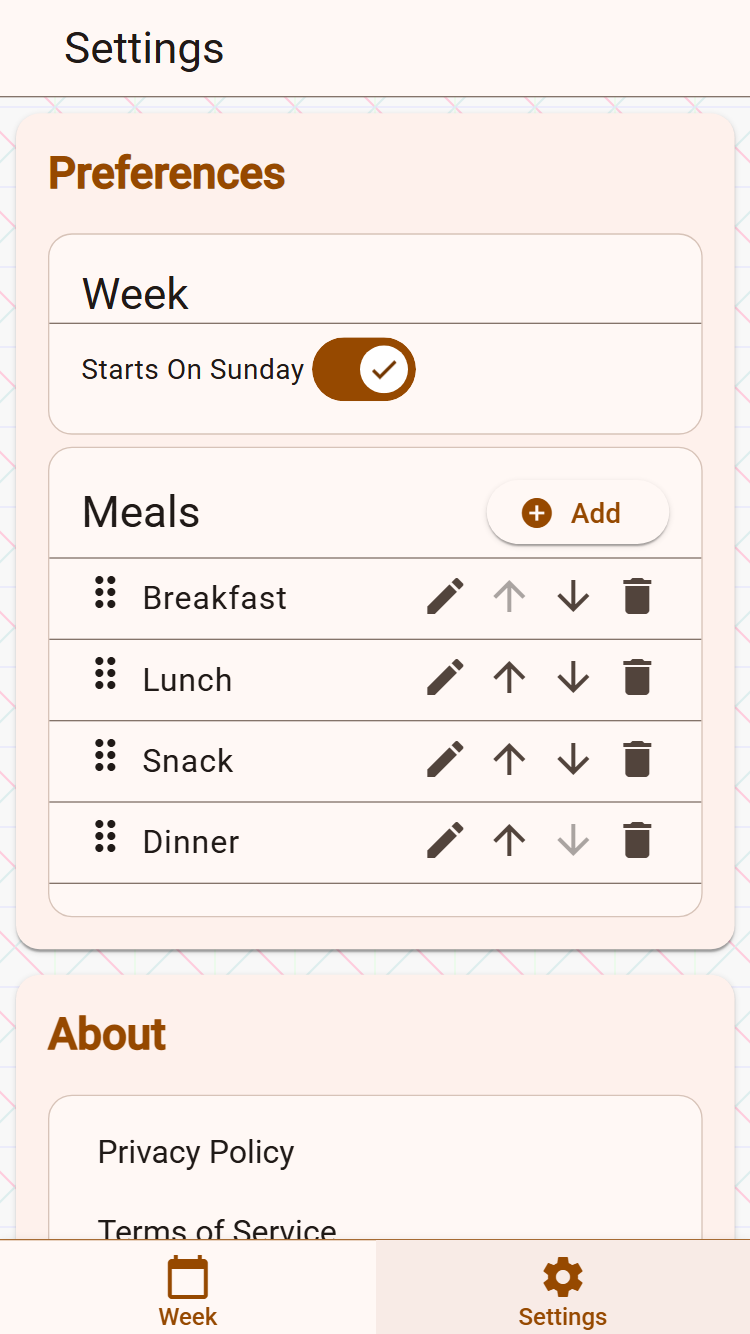
Settings

Settings main page is for

  • customizing your Week’s Start day (Sunday or Monday)
  • customizing your Meals, adding, deleting and reordering.
  • Finding out our Privacy Policy, Terms, Support address
  • Getting to this kTutorial.
wallpaper